
Embedding Collect Code via Google Tag Manager (GTM)
Working with Einstein Recommendations in Marketing Cloud Engagement.
First published 2020-09-27 in the SFMC Cookbook. Ported here for sfmc.guide.
There are multiple ways of achieving an integration, but given that you are looking at a tag manager, you are likely including multiple trackers in your page. In this scenario, you will want to dive deep into Google’s Ecommerce (GA4) Developer Guide. There is also the deprecated Enhanced Ecommerce (UA) Developer Guide - please disregard this document in favor of the newer “GA4” version.
Optional read: You may want to understand the Enhanced Ecommerce GA Developer Guide which describes how to enable the measurement of user interactions with products on ecommerce websites across the user’s shopping experience in Google Analytics (GA). While you of course do not need to use GA together with Einstein, it does explain the underlying concepts.
While we are looking at prerequisites, please also pay attention to Google’s definition of “triggers” and their defintion of tags.
For SFMC’s Collect Code, you will need to understand Custom Tags.
Loading the GTM library
First off, let’s make sure GTM is loaded on your website. You will need to go to Google Tag Manager and select your Account (1), or alternatively create a new Account (2).
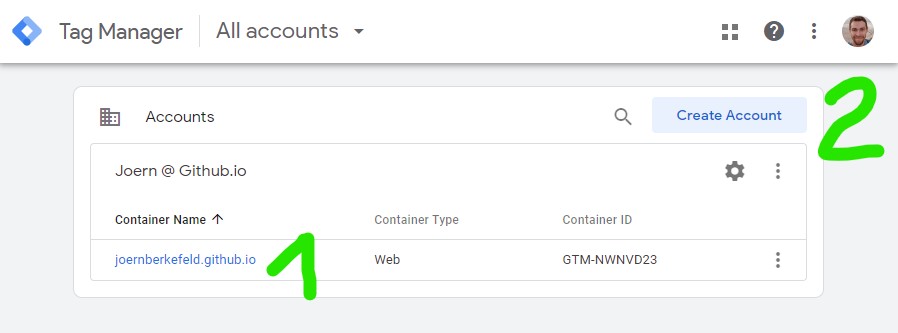
Either way, you end up with the Container ID (starting with “GTM-“). Now, we switch over to GTM’s own Quick Start Guide which at the time of writing, asks you to complete the following 2 steps in your website:
- Copy the following JavaScript and paste it as close to the opening <head> tag as possible on every page of your website, replacing GTM-XXXX with your container ID:
<!-- Google Tag Manager -->
<script>(function(w,d,s,l,i){w[l]=w[l]||[];w[l].push({'gtm.start':
new Date().getTime(),event:'gtm.js'});var f=d.getElementsByTagName(s)[0],
j=d.createElement(s),dl=l!='dataLayer'?'&l='+l:'';j.async=true;j.src=
'https://www.googletagmanager.com/gtm.js?id='+i+dl;f.parentNode.insertBefore(j,f);
})(window,document,'script','dataLayer','GTM-XXXX');</script>
<!-- End Google Tag Manager -->
- Copy the following snippet and paste it immediately after the opening <body> tag on every page of your website, replacing GTM-XXXX with your container ID:
<!-- Google Tag Manager (noscript) -->
<noscript><iframe src="https://www.googletagmanager.com/ns.html?id=GTM-XXXX"
height="0" width="0" style="display:none;visibility:hidden"></iframe></noscript>
<!-- End Google Tag Manager (noscript) -->
Loading collect.js via GTM
After selecting/creating a GTM account in the previous step, find “Tags” in the navigation and then click on Create by clicking on the upper tile, ignoring the lower “Triggering” tile.
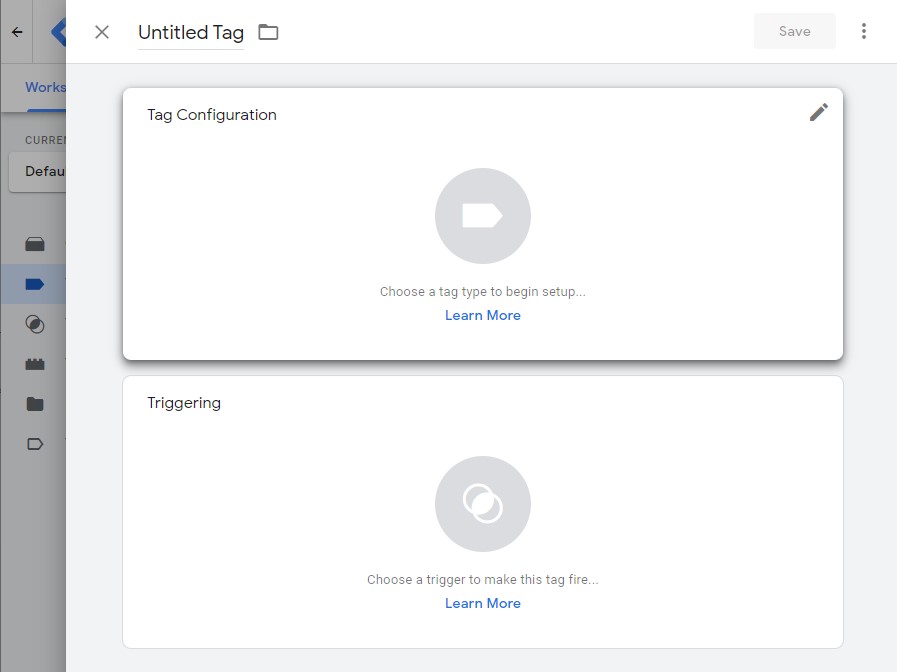
The “Choose tag type” dialogue pops up. Scroll down until you find the Custom section and click on “Custom HTML”:

Now you can configure all relevant details of ur library-loading tag:
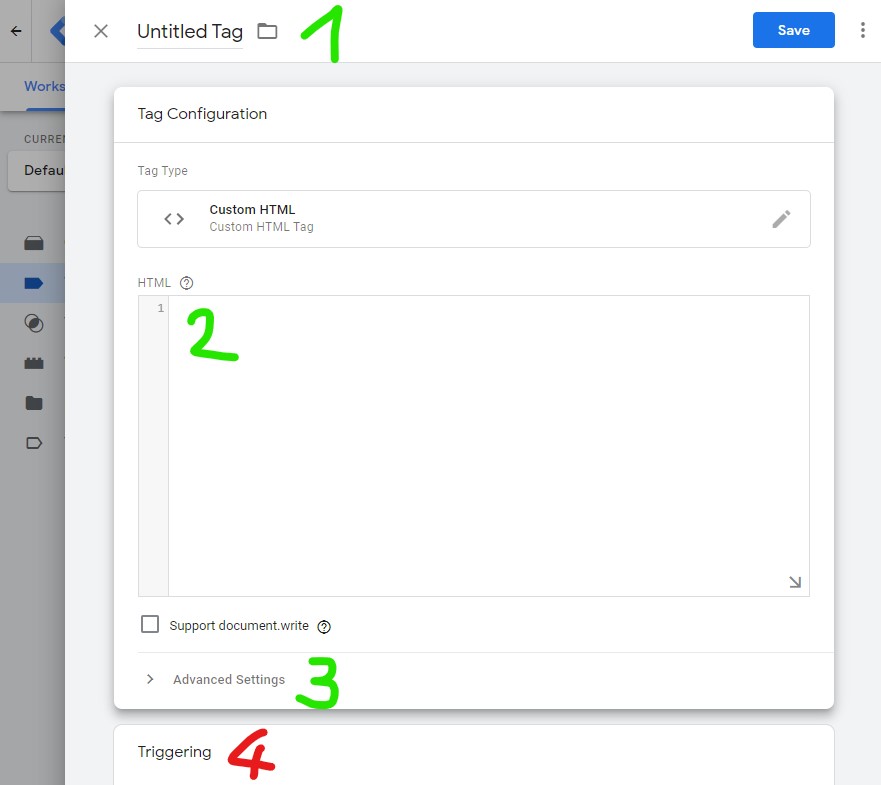
- Change the name from “Untitled Tag” to “Collect.js loader” (or whatever suits you).
- Go fetch the code from Initialize the library > Asynchronous Collect Code section above. and paste it into the “HTML” textarea.
Important: make sure you replace
INSERT_MIDwith your BU’s MID in 2 places in this snippet! - click on “Advanced Settings” which pops up the below additional interface and ensure “Tag firing options” is set to “Once per page”.
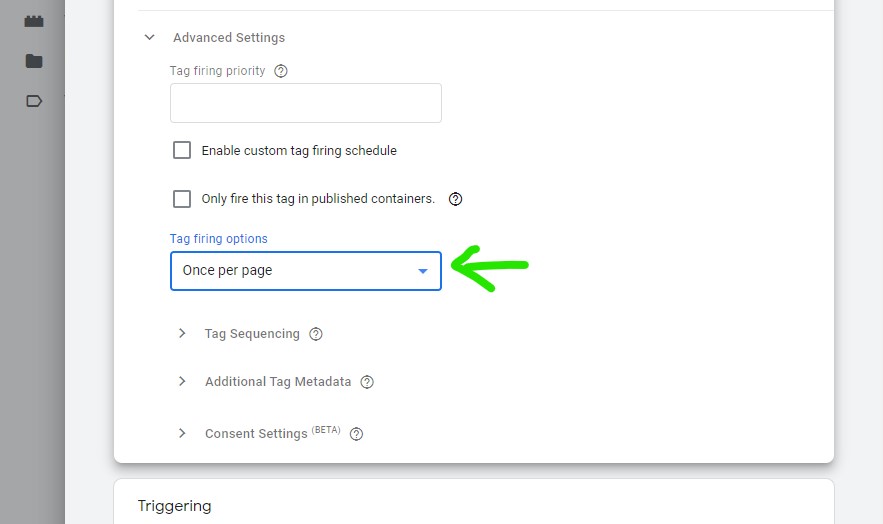
- Ignore the “Triggering” section for this tag. We will load it through the actual events.
When you are done the tag should look like this:
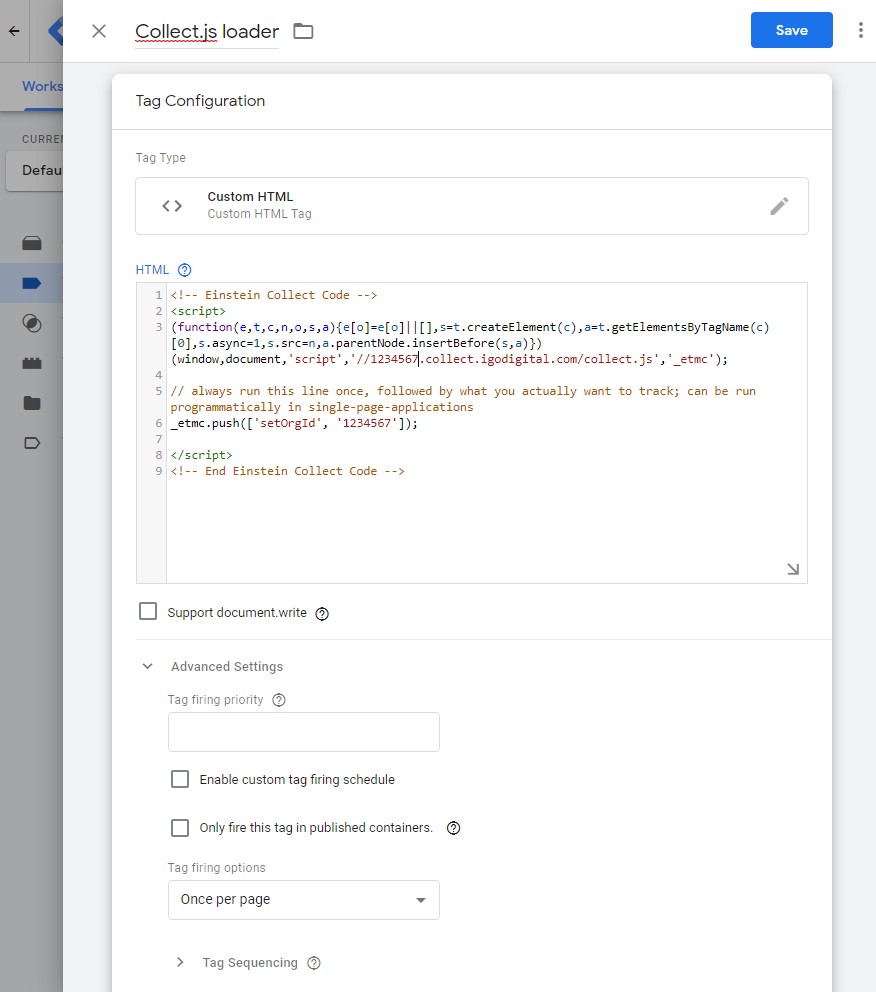
While saving the system might ask you to add a trigger - Do not add a trigger here but instead simply save the tag. We will ensure it’s loaded later.

GTM: Developer Playground
For early testing and especially if you don’t have access to it on your SFMC instance just yet, you may replace the URL of the loader from '//1234567.collect.igodigital.com/collect.js' to 'https://joernberkefeld.github.io/SFMC-Cookbook/einstein/recommendation/collect-code/default/collect.js'. This probably won’t actually log anything but you can check in your browser DevTools’s network tab if the right type of callouts are made without actually having access to Marketing Cloud.
Logging events via GTM
With collect.js loading prepared, you may now start creating more custom tags, one for each event you want to be able to log for Einstein. Make sure you understood how to actually log events of all kinds via GTM and then simply hook up your new custom tags to those triggers.
Identify current user via GTM
In you website you want to trigger an event that is then caught by the triggers you specified in GTM for a certain tag. First, we need to define the variable that we want to log - unless it’s one of the default ones of course.
For our user login, let us create a custom Data Layer variable called userId:
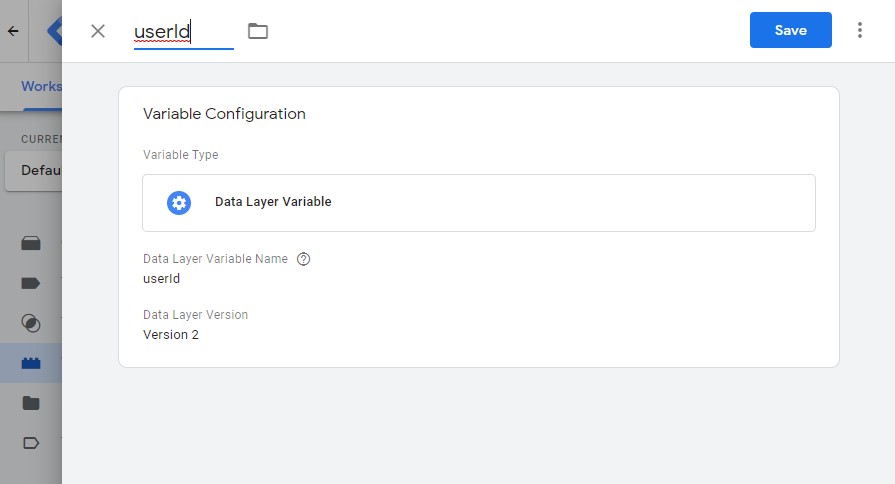
This variable can then be used when writing into the data layer on the website and referenced in our Custom HTML Tag:
Website Code:
<script>
dataLayer.push({
  'userId': 'my.personal@email.com',
  'event': 'identifyUser'
});
</script>
Your Custom HTML Tag:
Please remove the 4 backslashes in “{{userid}}” below - those are there to work around a weird templating issue I have here in GitHub. Do compare the following code snippet with the below screenshot if your are unsure about how this should look.
<script>
_etmc.push(['setUserInfo', {'email': \{\{userId\}\} }]);

// run a generic trackPageView once to set cookies that are necessary for personalized Web Recommendations to show up
_etmc.push(['trackPageView']);
</script>
Putting that all together it will look something like this for the tag:
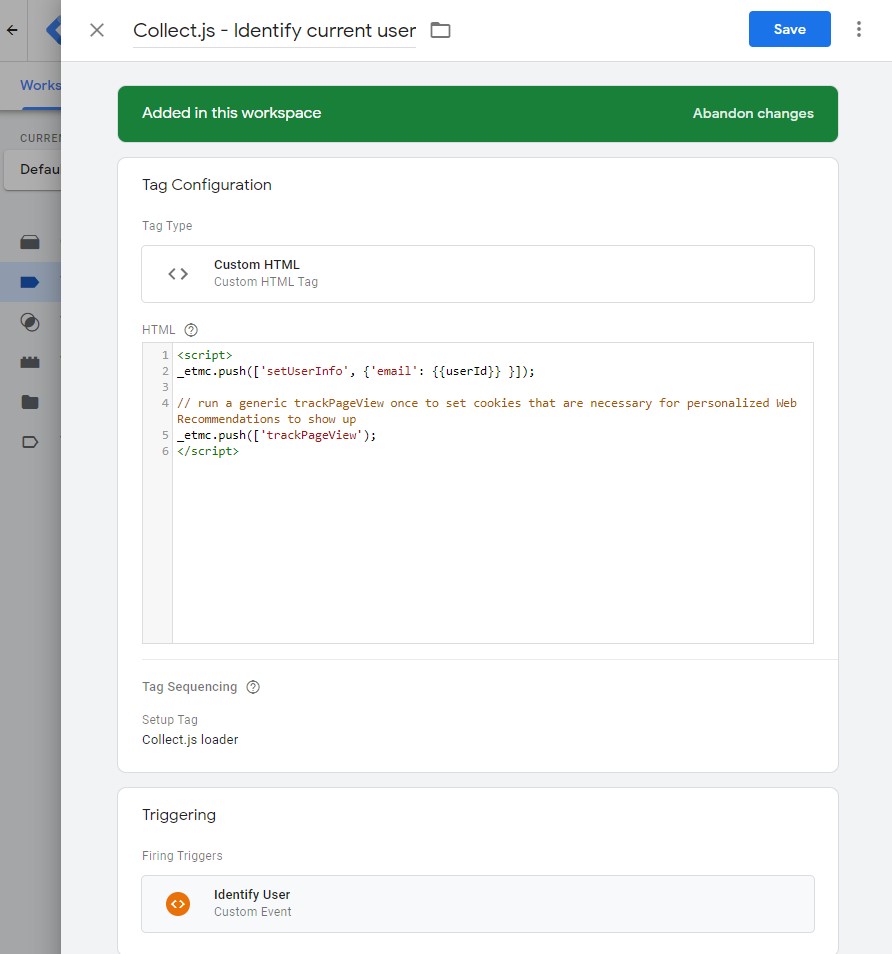
And like this for the trigger that you will need to create as a “Custom Event”, based on the event name you used in the website code. In this example that event is called identifyUser:
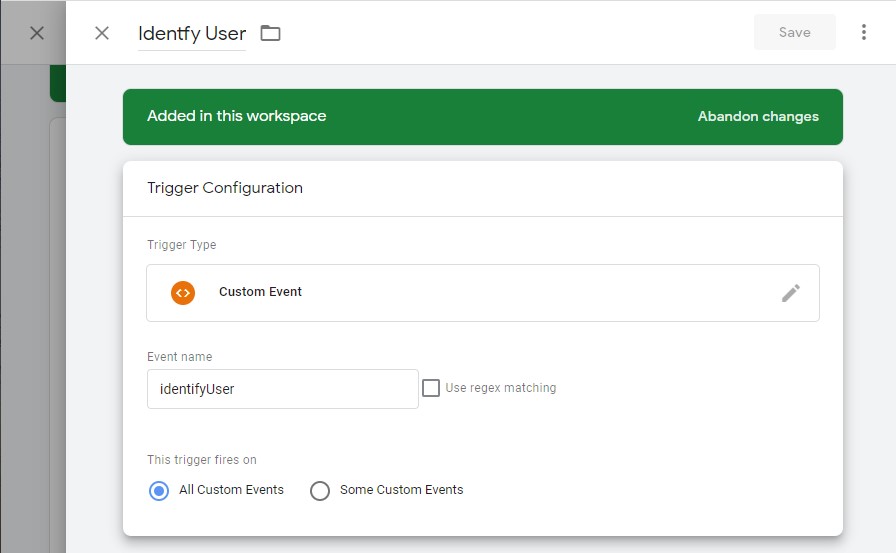
Now, finally, we need to ensure our collect.js library is actually loaded. That is done in the Advanced Settings of the Custom HTML Tag that we just created (named “Collect.js - Identify current user”).
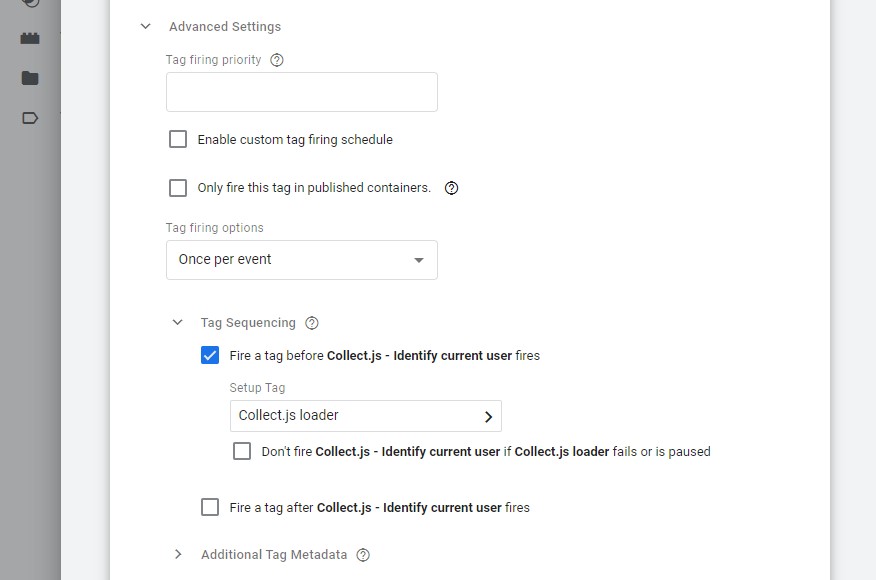
Ensure that for the option “Fire a tag before” you select the first tag we create earlier. That way, our library is really only loaded if events occur. And since it supports queueing events, loading it only now won’t have a negative effect on whats loaded, nor on performance.
Debugging / Previewing your GTM setup
Make sure to go through Loading the GTM library for the page you intend to test this on (unless you are just updating a previous setup). If the GTM library is loading fine, you can now try the white Preview button in the top right corner. This will open up Tag Assistant which should ask you to provide the URL of your page. Once given, Tag Assistant will open a new window (or new tab) with that link and try to “connect”. That way, whatever changes you made will be usable in a save environment while normal users continue to use the last released (“submitted”) version.
Publishing your changes
When things look good, do make sure you actually publish your changes! You can do so by hitting the blue Submit button which should be in the top right corner of every GTM page. Unless you do this, none of your changes will be live!
Events mapping: Collect Code to GA4 Retail/Ecommerce
The most current list of GA Events can be found in the Analytics Help.
The following table aims to show how events are tracked in comparison to each other. Please note that SFMC can track additional events (marked with ‘-‘ below) using trackEvent method, however, this would not have an impact on Einstein Recommendations.
Also, Google’s add_to_cart and remove_from_cart only take the items actually added/removed, SFMC’s Collect code, however, requires you to use trackCart for both events and to pass in all items that remain in the cart after the event.
Events missing in GA:
Also don’t forget about setOrgId that needs to run on page load and doNotTrack after login / as soon as we know.
| SFMC Event | GA4 Event | Trigger | GA Parameters |
|---|---|---|---|
| trackEvent | add_payment_info | when a user submits their payment information | coupon, currency, items, payment_type, value |
| trackEvent | add_shipping_info | when a user submits their shipping information | coupon, currency, items, shipping_tier, value |
| trackCart | add_to_cart | when a user adds items to cart | currency, items, value |
| trackWishlist | add_to_wishlist | when a user adds items to a wishlist | currency, items, value |
| trackEvent | begin_checkout | when a user begins checkout | coupon, currency, items, value |
| trackEvent | generate_lead | when a user submits a form or request for information | value, currency |
| trackConversion trackCart.clear_cart |
purchase | when a user completes a purchase | affiliation, coupon, currency, items, transaction_id, shipping, tax, value |
| trackEvent | refund | when a refund is issued | affiliation, coupon, currency, items, transaction_id, shipping, tax, value |
| trackCart trackCart.clear_cart |
remove_from_cart | when a user removes items from a cart | currency, items, value |
| trackEvent | select_item | when an item is selected from a list | items, item_list_name, item_list_id |
| trackEvent | select_promotion | when a user selects a promotion | items, promotion_id, promotion_name, creative_name, creative_slot, location_id |
| trackPageView | view_cart | when a user views their cart | currency, items, value |
| trackPageView.item | view_item | when a user views an item | currency, items, value |
| trackPageView.category | view_item_list | when a user sees a list of items/offerings | items, item_list_name, item_list_id |
| trackPageView | view_promotion | when a promotion is shown to a user | items, promotion_id, promotion_name, creative_name, creative_slot, location_id |
| doNotTrack | probably best to handle in application layer and avoid loading collect.js at all | - | - |
| setUserInfo | see Identify current user via GTM above | - | - |