
MobilePush setup
How the MobilePush SDK creates and updates contacts with your contact key and device ID, a setup checklist for the Marketing Cloud and app teams, push consent, and what to check when devices are missing.
This page is for Marketing Cloud architects who set up push notifications together with an app team. The goal is simple: when a user registers or logs in to the app, Marketing Cloud has one contact with your own ID as the contact key, and the user’s device attached to it.
The Marketing Cloud mobile SDK was renamed several times (MobilePush SDK, Marketing Cloud SDK, Engagement Mobile SDK, unified SDK) and method names changed with it. The names below are the common ones; your app team must check them against the SDK version they use.
- How it works
- Getting started
- How contacts and devices are created and updated
- Push consent
- Troubleshooting: contact exists but has no device
- Finding the official documentation
How it works
- The app starts the SDK with the details of a MobilePush app that lives in one Marketing Cloud business unit.
- The app sets the contact key (your ID, for example a global customer ID) in the SDK.
- The SDK sends a registration to Marketing Cloud: contact key, a device ID the SDK generates per install (neither the push token nor the advertising ID), the push token from Apple or Google, the opt-in status, app ID, tags and attributes.
- Marketing Cloud attaches this device to the contact with that key, or creates the contact if it does not exist yet.
- After that, the SDK sends changes at most about once a minute, and retries failed sends with growing delays. The SDK is the source of truth; data only flows from the device to Marketing Cloud.
Plan on the SDK registration being the only thing that creates the MobilePush part of a contact (device, push token, opt-in). Adding a contact to a list, an automation or an email send does not create a device.
Getting started
Marketing Cloud team
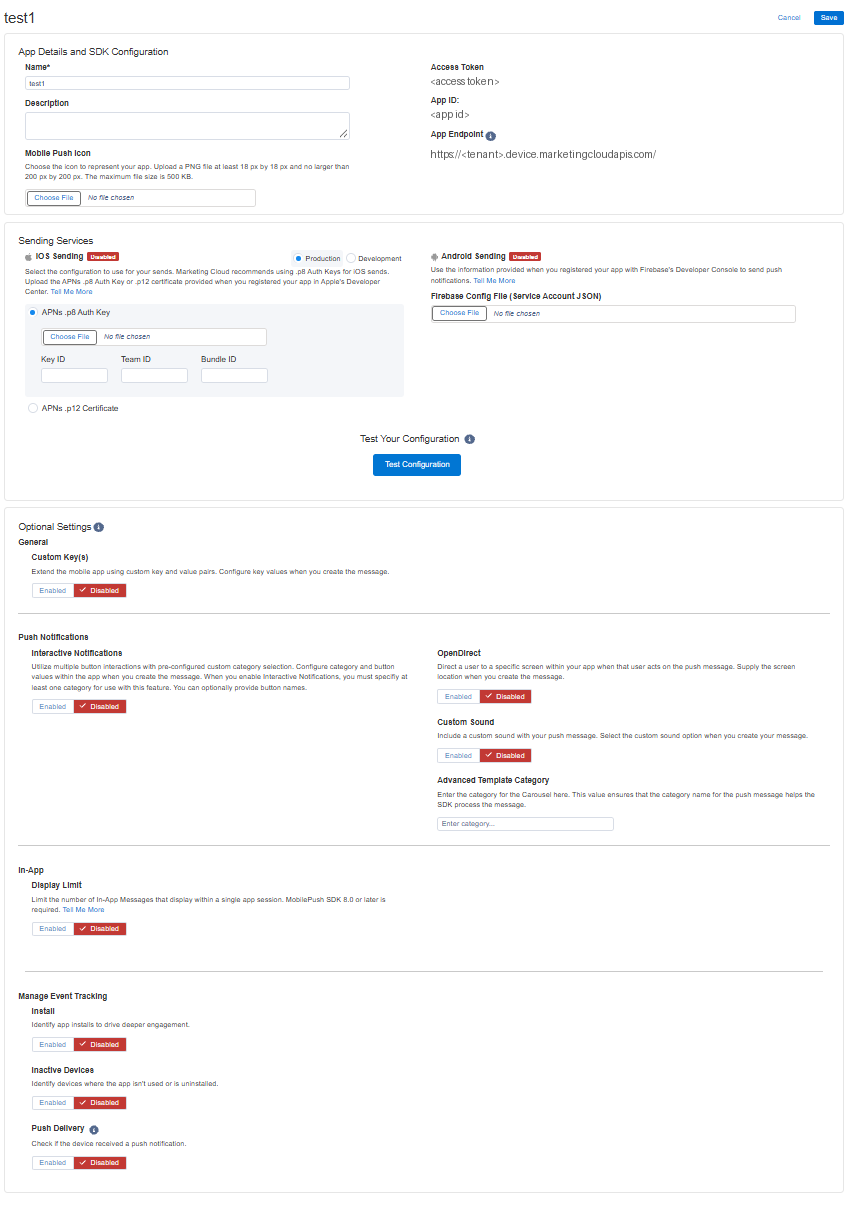
- Create the MobilePush app in MobilePush Administration, in the business unit that will send the pushes. The link works on every stack; if it lands on the start page after login, open it again.
- Add the push credentials under Sending Services:
- iOS: an APNs
.p8auth key with its Key ID, Team ID and Bundle ID (recommended), or a.p12certificate. Choose Production or Development to match the app build. Expired certificates stop iOS sends. - Android: the Firebase config file (service account JSON) from the Firebase console.
- Click Test Configuration before handing over.
- iOS: an APNs
- Hand over to the app team: App ID, Access Token and App Endpoint from App Details and SDK Configuration, plus the business unit MID.
- Agree on the contact key: which ID, in which exact format. It must match the subscriber key you use in email and elsewhere, character for character.
- Create attributes in MobilePush Demographics (Contact Builder) before the app sends them.
The app settings page, so you know what to prepare (credentials replaced with placeholders). The optional settings at the bottom (custom keys, interactive notifications, OpenDirect, in-app limits, event tracking) can be switched on later.
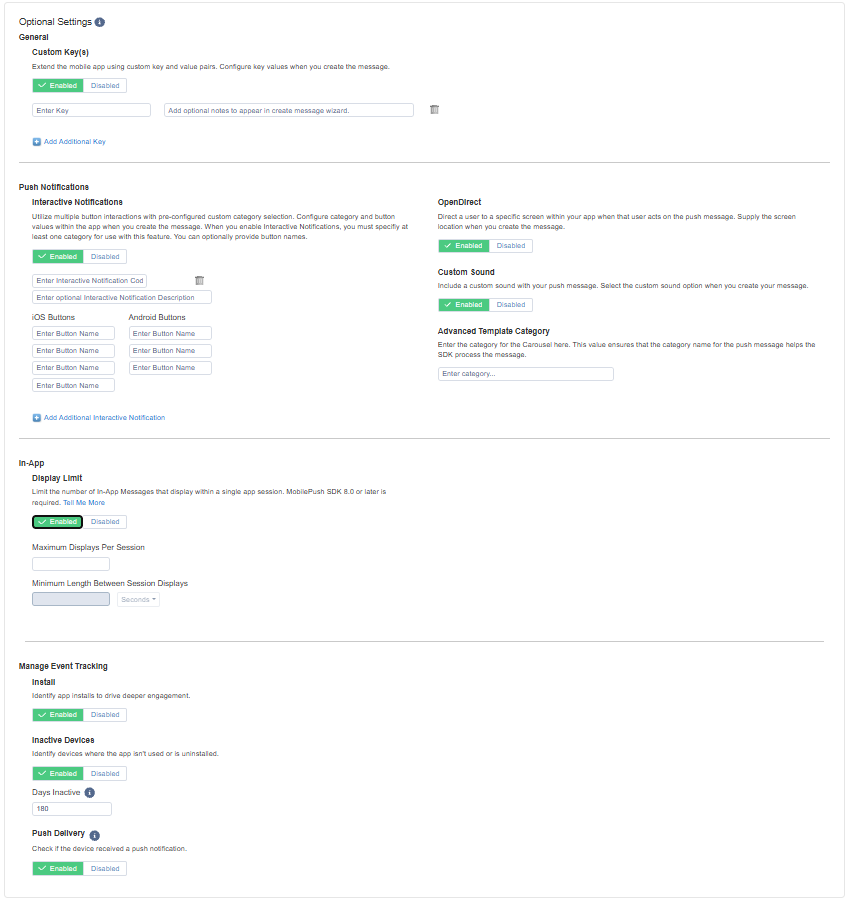
Enabling an optional setting expands the form with its own fields:
- Custom Keys: key names, each with an optional note for the message wizard.
- Interactive Notifications: a category code, optional description, and button names for iOS and Android. At least one category is required. The app must register the same categories.
- OpenDirect and Custom Sound: no extra fields here; the screen or sound is chosen per message. The app must handle them.
- In-App Display Limit: maximum displays per session and minimum time between them (SDK 8.0 or later).
- Inactive Devices: number of days without app use before a device counts as inactive (default 180).
App team
- Add the SDK and configure it with the four values from the Marketing Cloud team. Android also needs Firebase set up correctly, otherwise the SDK fails to start.
- Set the contact key as soon as the user is known:
setProfileId(yourId)in current SDKs,setContactKey(yourId)in older ones. - Delay the registration until the key is set:
delayRegistrationUntilContactKeyIsSet = true. Without it, the first registration goes out with a generated key before login. - Request notification permission and pass the push token to the SDK (on iOS from
didRegisterForRemoteNotifications). - Turn on SDK logging in test builds. The log shows whether the SDK started, which contact key and device ID were sent, and the server’s response.
Test together
- Fresh install on a test phone (uninstall first), register or log in with a test user.
- Wait about 15 minutes; registrations are not instant.
- Open the test user’s contact in Contact Builder and check its MobilePush section: device ID, system token, opt-in status. The All Contacts overview does not show the device ID.
- Compare with the SDK log: same contact key, same device ID.
How contacts and devices are created and updated
| Situation | Result in Marketing Cloud |
|---|---|
| Contact key set, contact does not exist | New contact with your key, device attached |
| Contact key set, contact already exists (from email, API, import) | Device attached to the existing contact. No duplicate. Email data, data extensions and other attributes stay as they are |
| No contact key set | Marketing Cloud first tries to match the device’s push token to an existing contact. Without a match, it creates a contact with a generated key, which does not merge with your contact later |
| Key set after the first registration | Device moves to your contact; the generated contact stays behind without a device (“orphaned”) |
| Second phone, same user | Second device under the same contact |
| Another user logs in on the same phone | Device moves to the other user’s contact |
| No notification permission yet | Device exists, push token may be empty, status not opted in |
Push consent
There are two kinds of consent, and they reach Marketing Cloud in different ways.
Technical opt-in comes only from the SDK. It reflects the OS notification permission and the SDK’s own push switch, which the app can turn on and off (setPushEnabled on iOS, enable/disable push on the push message manager on Android; check the names for your SDK version). Apple and Google also report invalid tokens and opt-outs back to Marketing Cloud; this is best effort and can lag by a few sends. You cannot set this status from Marketing Cloud, an automation or the API. A MobilePush contact import can update attributes of contacts that already have a device, but it cannot create a device or grant opt-in.
Marketing or legal consent (from a consent tool, CRM or web form) is your own data:
- Consent given in the app: the app maps its consent switch to the SDK push switch. No consent means push disabled, and Marketing Cloud shows the device as not opted in. One source of truth.
- Consent captured elsewhere: load it into a data extension keyed on the contact key via automation or API, and filter on it in Journey Builder or use it as an exclusion list.
A contact only gets a push when the device is opted in and your consent data allows it. Both checks depend on the contact key matching; if devices sit under generated keys, consent filters on your ID miss them.
Troubleshooting: contact exists but has no device
The contact and the device registration reach Marketing Cloud by different routes. A contact with your ID proves something created the contact, not that the SDK did.
| Symptom in the SDK log | Likely cause | What to check |
|---|---|---|
| SDK not started, init errors | Wrong configuration, Firebase missing (Android) | App ID, Access Token, App Endpoint, MID, Firebase setup |
| Nothing sent | Delayed registration and the key is never set, set through the wrong call, or set for one SDK module only instead of for push | setProfileId / setContactKey call and when it runs |
| Sent, but with another contact key | Key not set, set too late, different format (case, prefix, email instead of ID), shared test phone | Search Contact Builder for the key or device ID from the log |
| Sent with your exact key and accepted | You are looking in the wrong place | The contact’s MobilePush section, the right business unit, waited 15 minutes |
| Sent and rejected, or retrying | Network blocked, wrong endpoint | Server response in the log; firewall or proxy on the test network |
Contacts can also come from your backend calling the API at sign-up, from email sends, imports, Marketing Cloud Connect or journey entries. That is fine, as long as the SDK then registers with exactly the same key.
Finding the official documentation
The topic is spread across the SDK developer guides (app side) and Salesforce Help (Marketing Cloud side), and the important rules sit on pages with unexpected titles. These search terms get you there fastest:
setProfileIdand “Register Contacts” (MobilePush SDK): how the contact key is set and what happens without one- “Contact Dissociation”: orphaned contacts and
delayRegistrationUntilContactKeyIsSet - “Troubleshoot Initialization and Registration”: SDK start and registration problems
- “MobilePush” in Salesforce Help, Mobile Studio section: the Marketing Cloud side (app setup, credentials, contacts)
Useful starting points: