
SFMC UX Tools for Chrome
Chrome extension that makes Marketing Cloud's own screens easier to work in: code help for AMPscript and SSJS, readable keys, real journey names and a list of transactional messages. For Engagement and for the content editor of Marketing Cloud Next.
Install it and Marketing Cloud gets easier to work in. Nothing to set up, nothing to log in to.

Free, from the Chrome Web Store.
What you get
- Code editors you can read: AMPscript and SSJS in colour, in a light or dark theme.
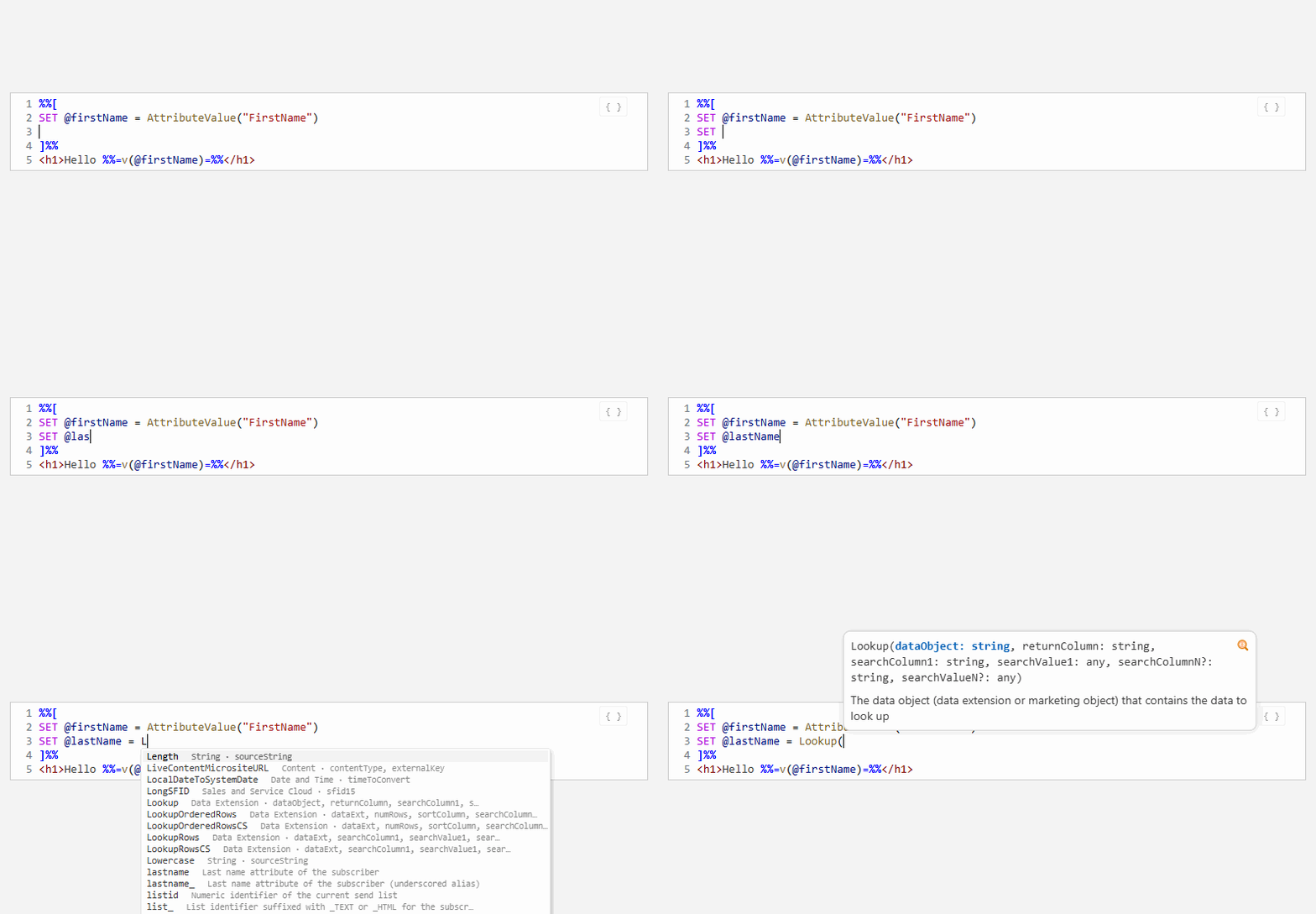
- Help while you type: suggestions, explanations when you point at code, and mistakes underlined before you save.
- Tidy code with one click: the { } button or Shift+Alt+F, and Ctrl+S saves.
- Readable keys instead of random ones: new automations, activities, data extensions, journeys and more get a key made from their name, such as
Welcome_series. - No more “New Journey - 18 November…”: Journey Builder asks for a real name before a new journey is saved.
- Transactional SMS, push and OTT messages in a list: a new entry in the Mobile Studio menu shows them and lets you create, change and delete them. Marketing Cloud itself has no place for this.
- Small fixes for everyday annoyances: select all scopes of an installed package with one click, and a pasted name or key that Marketing Cloud would ignore is used.
- Private: nothing is collected and nothing leaves Marketing Cloud.
Finished and on their way to the Chrome Web Store: links you can send to a coworker for Content Builder assets and for data extensions, lists and folders in Email Studio and Contact Builder; deleting messages in MobileConnect and MobilePush; a search on every field of a data extension’s records; and underlined mistakes in the SQL query activity.
Where it works
- Marketing Cloud Engagement: Content Builder, Email Studio, CloudPages, Automation Studio, Journey Builder, Contact Builder, Mobile Studio and Setup.
- Marketing Cloud Next: the code of an email made with Create with HTML, and the HTML component in emails, landing pages and content blocks. There the extension helps with AMPscript; colours and Handlebars are left to Salesforce.
Code you can read
Marketing Cloud colours HTML but shows AMPscript as plain black text. The extension gives AMPscript and SSJS their own colours.
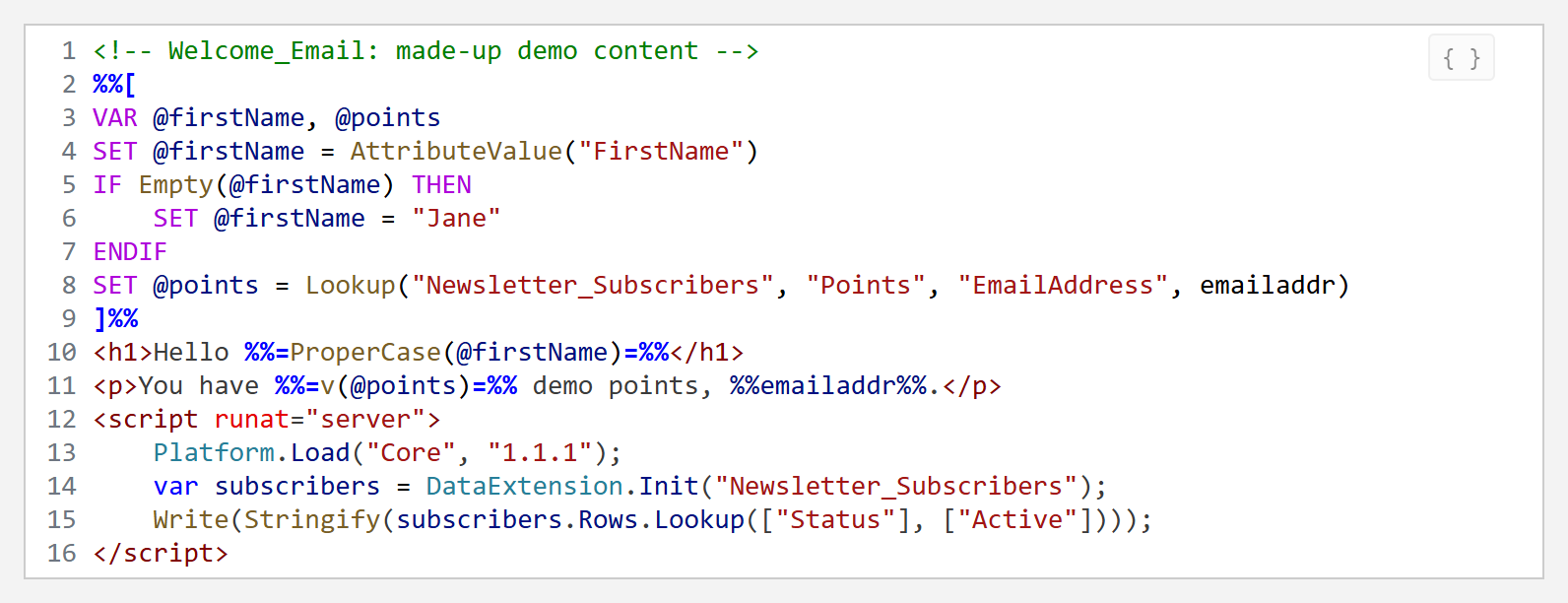
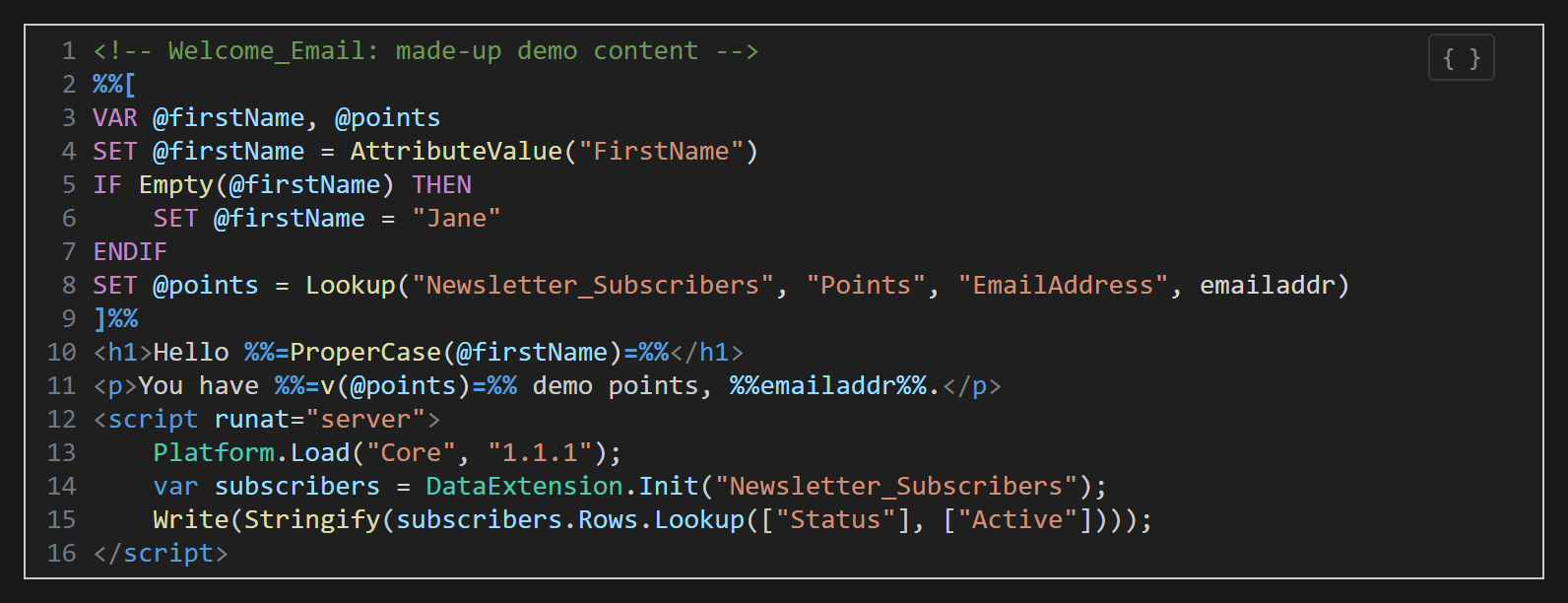
- Light or dark: pick the theme in the options; the code editors follow.
Help while you type
- Suggestions: functions, keywords and your own variables, each with a short description.
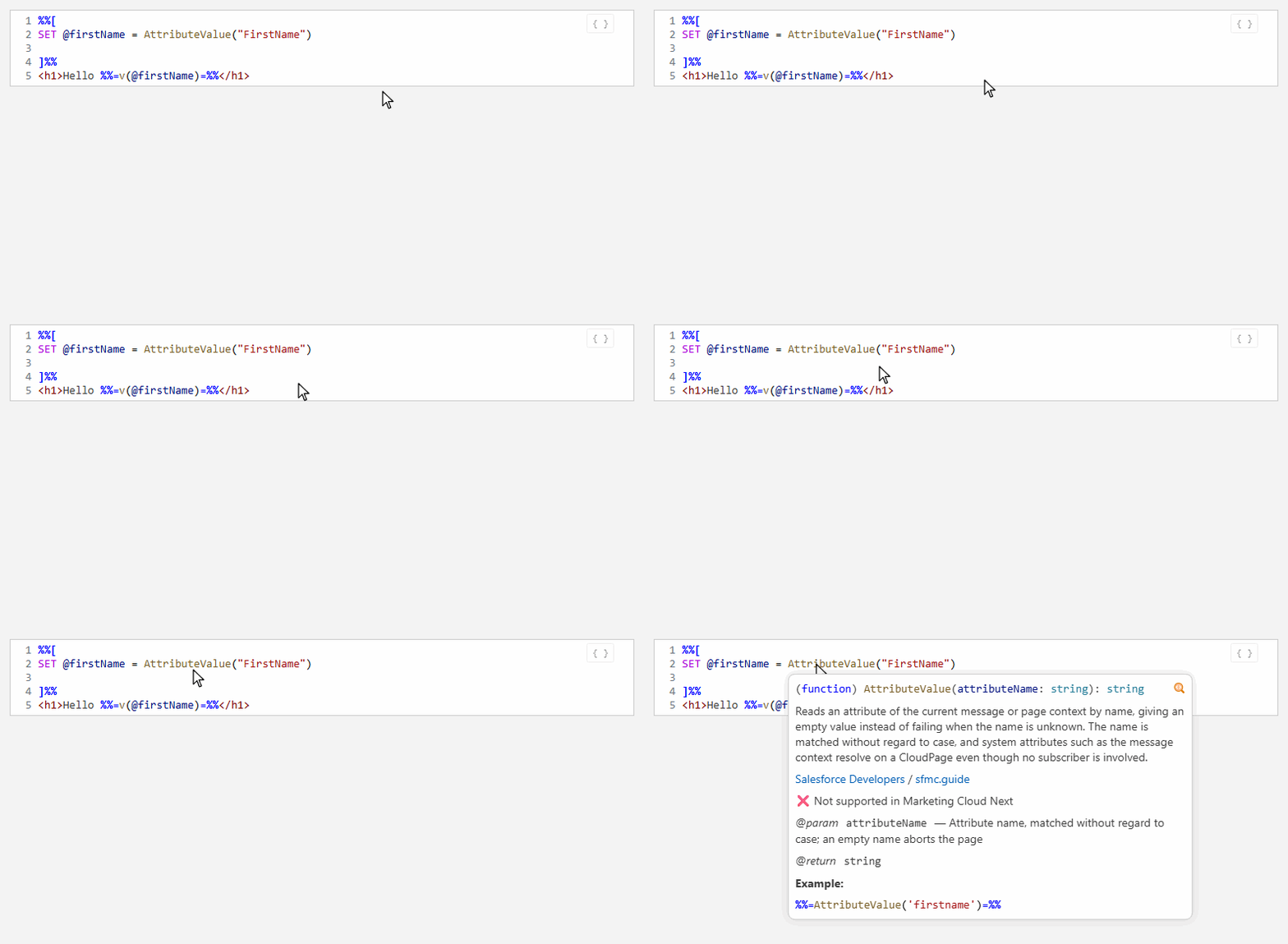
- Explanations: rest the mouse on a function and a box says what it does, what it needs and shows an example.
- Mistakes underlined before you save: a misspelt function, a missing bracket, or something that will not work in the place you are writing it.

- One-click fixes: where the extension knows the fix, the box offers it as a button.
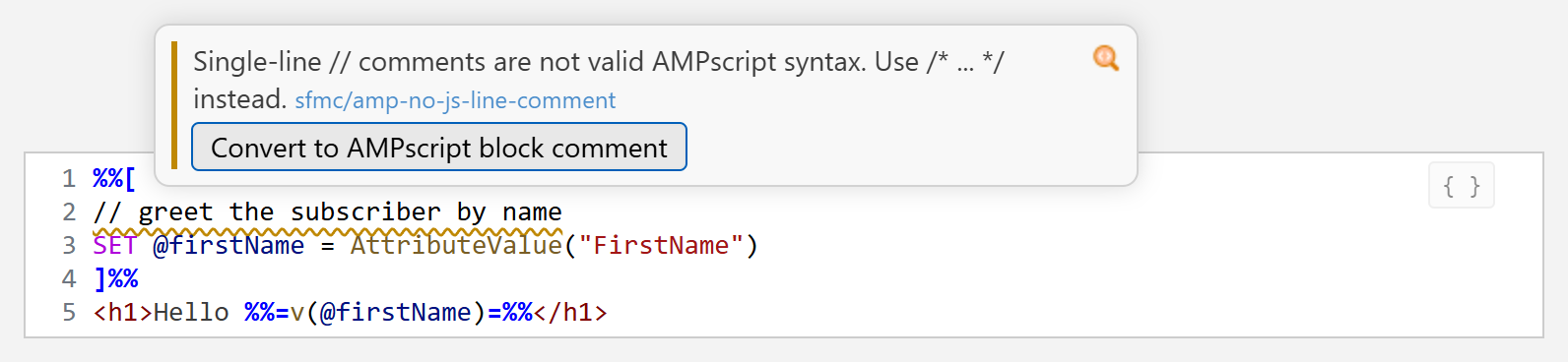
Tidy code with one click
- The { } button or Shift+Alt+F indents and spaces your code the same way every time.
- Ctrl+S saves, like everywhere else.
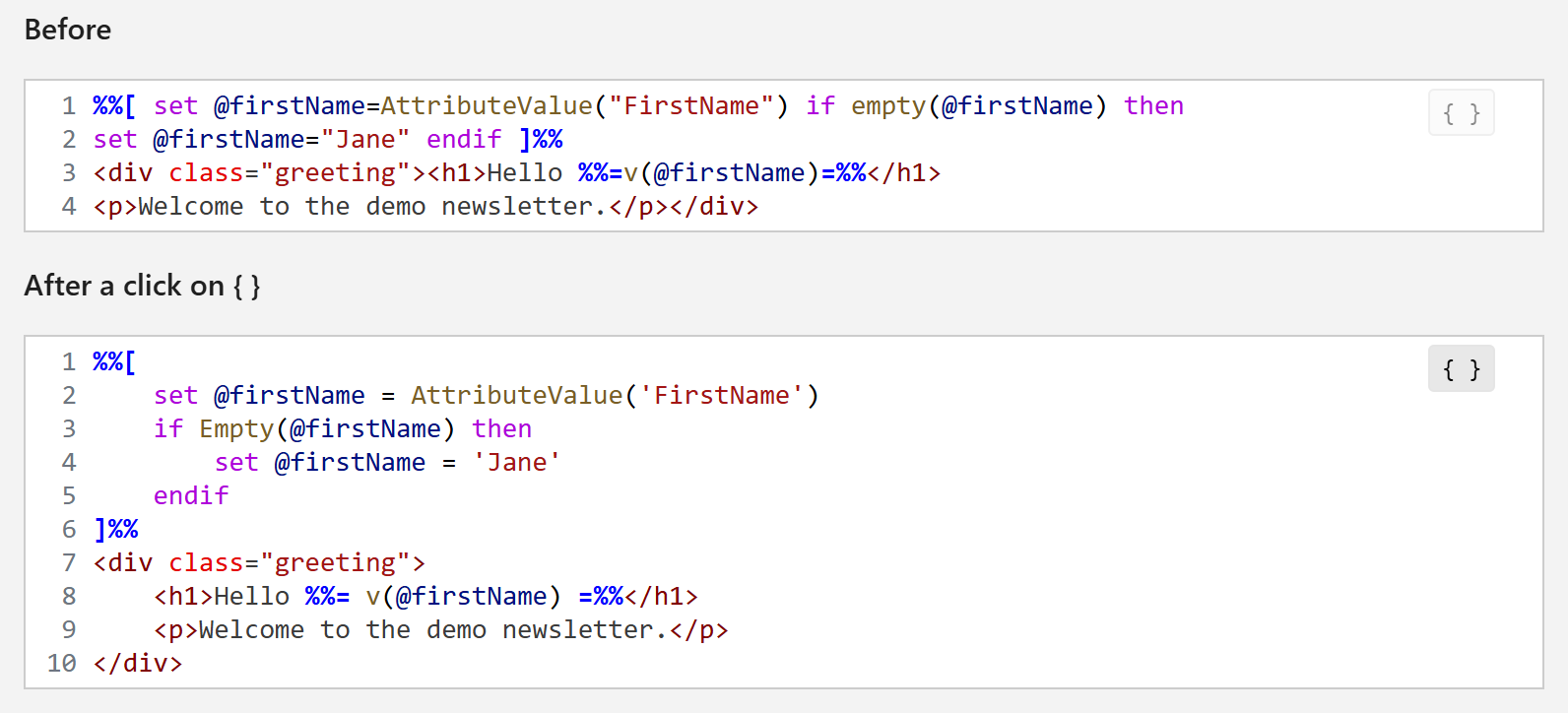
Readable keys
Marketing Cloud gives most new things a random key. The extension fills in a key made from the name while you type it, and you can still change it.
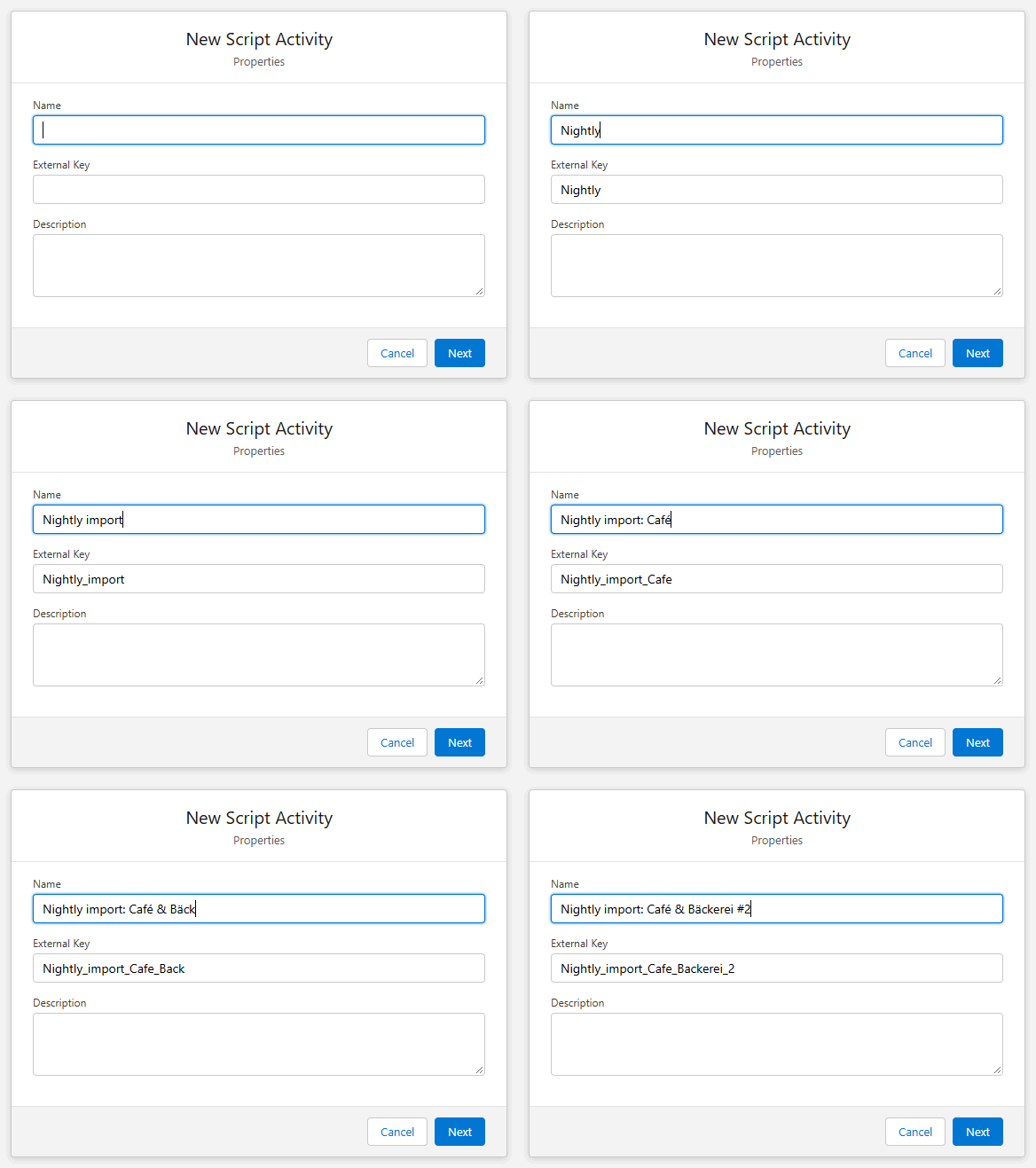
- Where: automations and their activities, data extensions, data filters, triggered sends, journeys and their API events, content blocks and emails, sender profiles, send classifications, delivery profiles, file locations, roles and users.
A real name for every journey
Journey Builder calls every new journey “New Journey” with a date. The extension asks for a name of your own before the journey is saved.

Transactional messages in a list
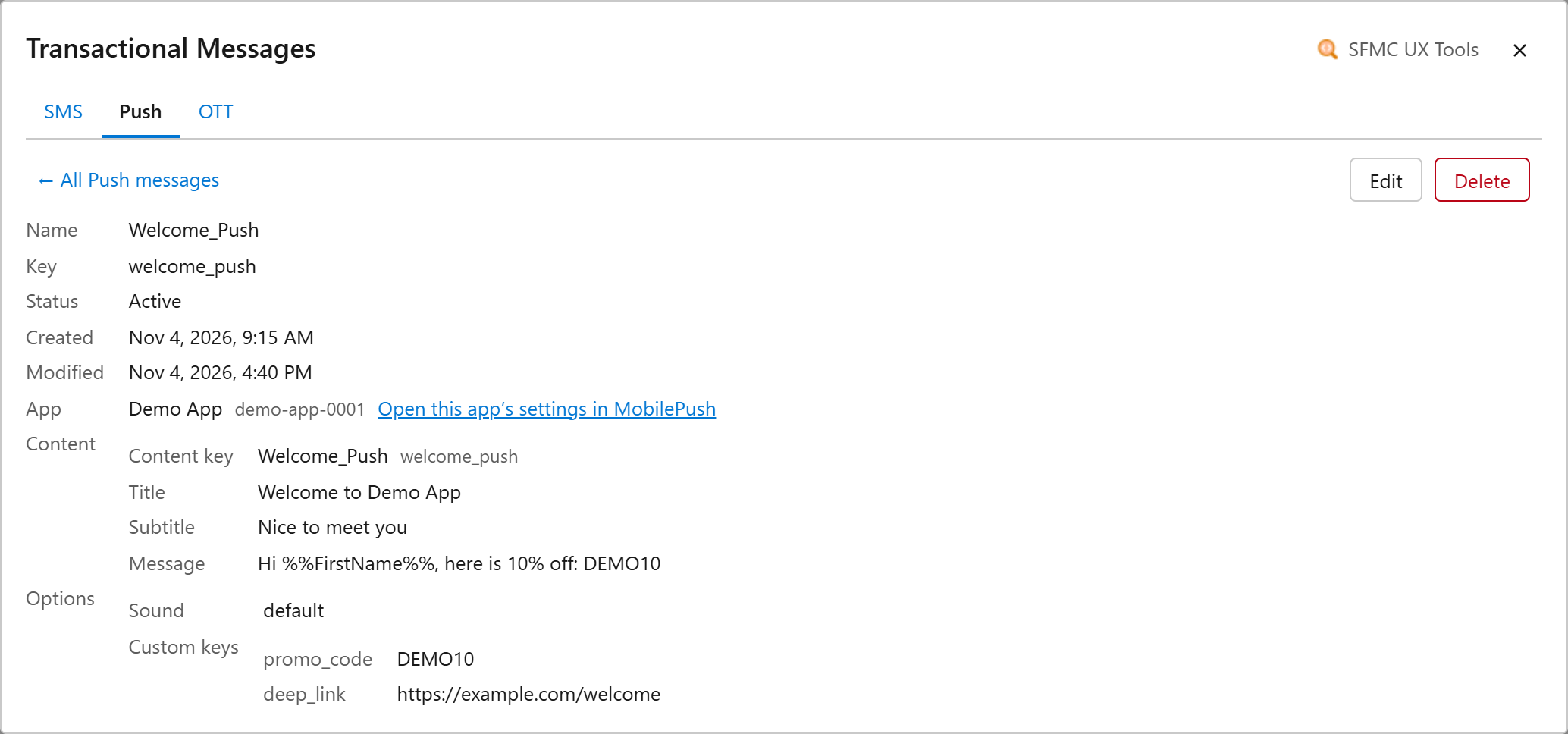
Transactional SMS, push and OTT messages exist in Marketing Cloud, but only its API shows them. The extension adds Transactional Messages to the Mobile Studio menu.
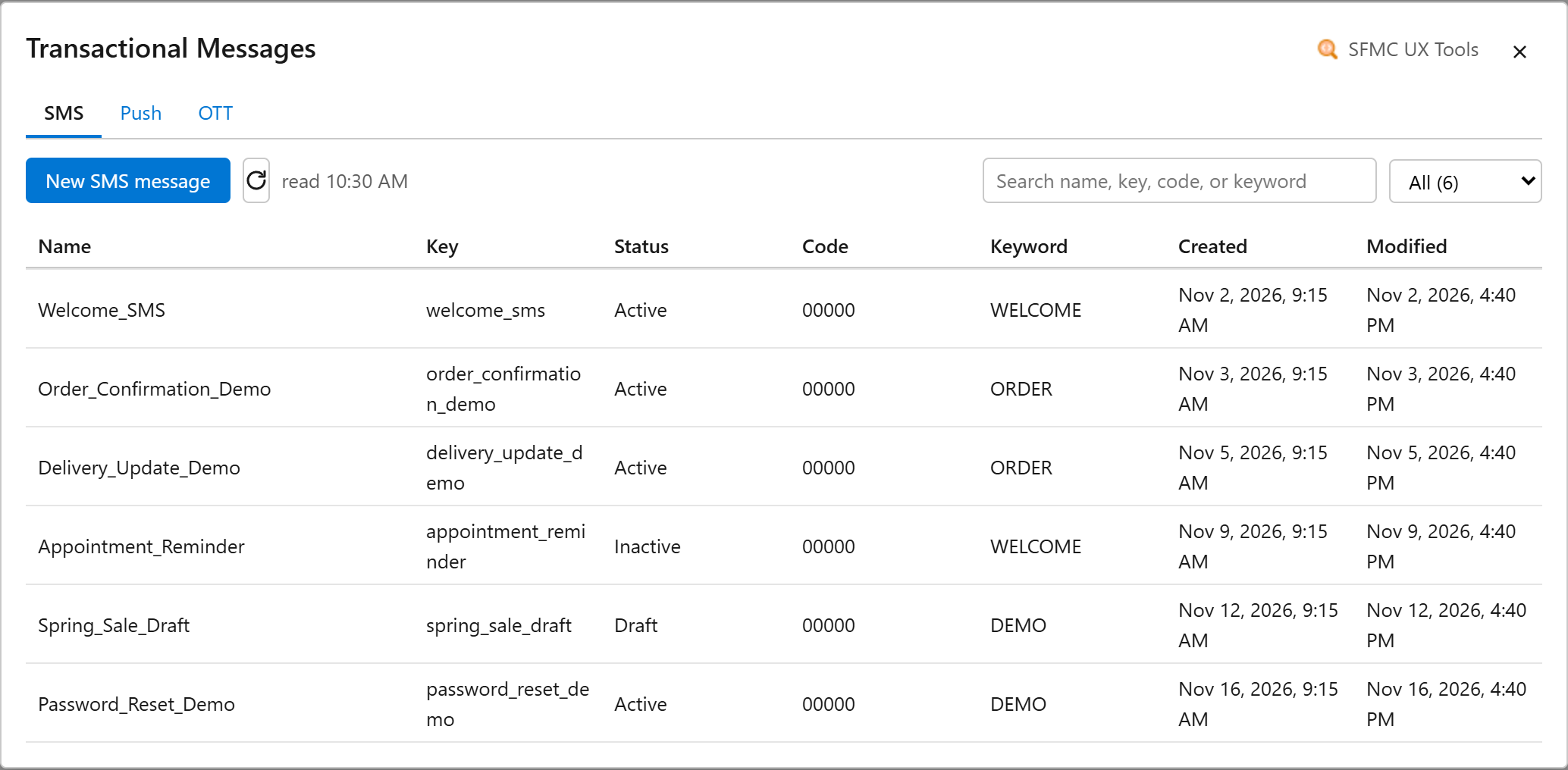
- One tab per channel: SMS, push and OTT, each with search and a filter by status.
- Create, change and delete: in forms that know your account’s codes, keywords, apps and contents.
- Details that explain themselves: a push message shows its app and its content by name, with links to both.
Small fixes
- Select all scopes: the scope list of an installed package gets a Select all button.
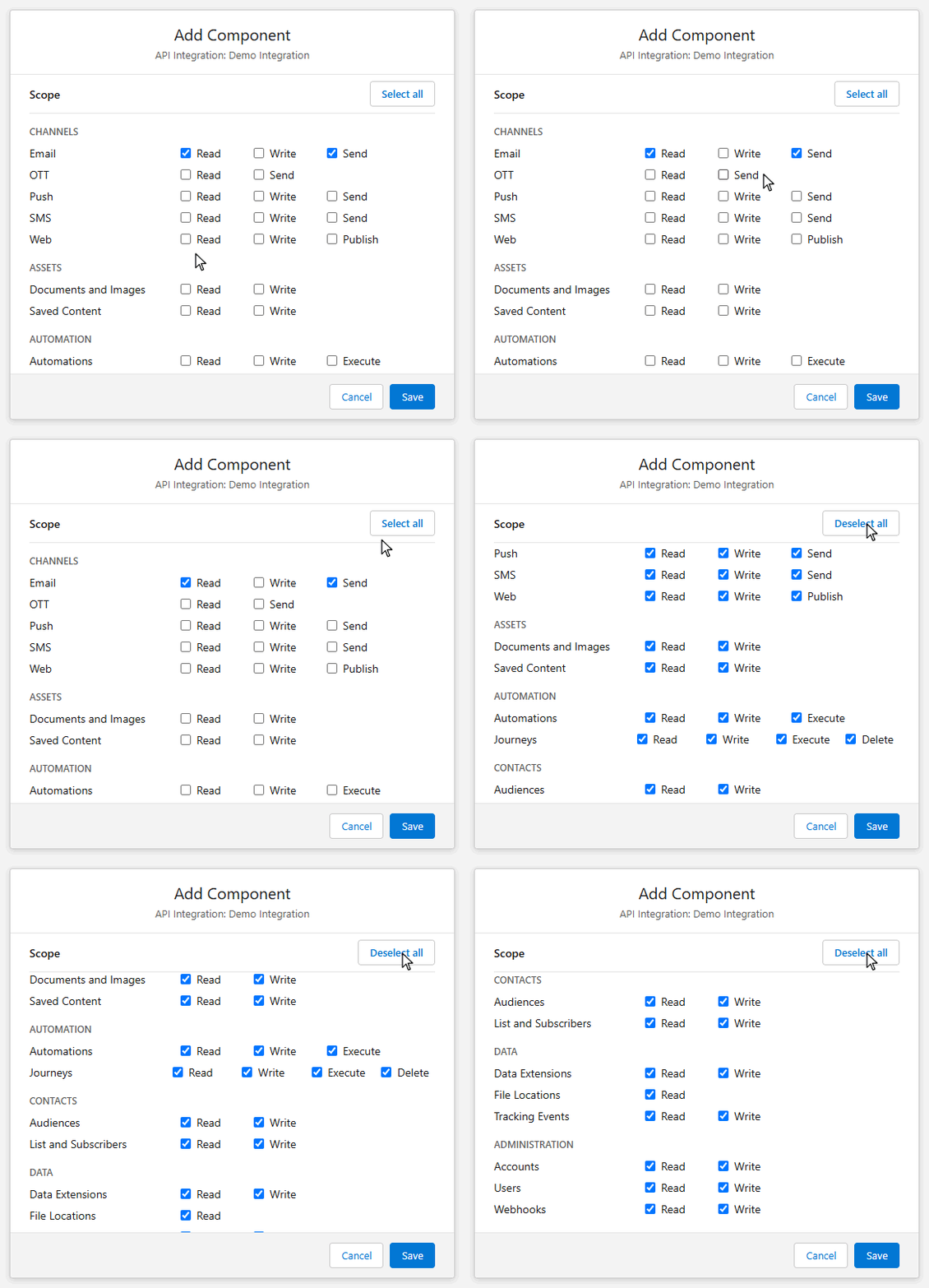
- Pasting with the mouse works: a name or key pasted from the right-click menu is used, where Marketing Cloud would ignore it.
Privacy
Nothing is collected and nothing leaves Marketing Cloud. The extension only talks to the Marketing Cloud pages you are signed in to.
Related
The language help comes from the same catalogs as the SFMC Language Service for VS Code and prettier-plugin-sfmc.